Configuration
Configuration
Section titled “Configuration”This is where you enter the information Lut sent you when your account was created. Without this, the payment button will not appear on your store.
Before you start: Make sure you have the email from Lut with your account credentials. If you can’t find it, contact Lut support before continuing.
How to get to the settings page
Section titled “How to get to the settings page”- In WordPress, click WooCommerce in the left sidebar
- Click Settings
- Click the Payments tab
- Find LUT Turbo Payment Gateway and click Manage
You will see a settings form like this:
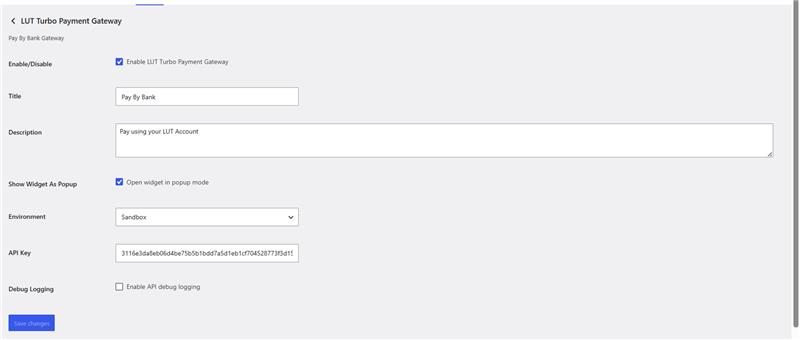
Fill it in using the guide below.
What to put in each field
Section titled “What to put in each field”Enable/Disable
Section titled “Enable/Disable”This is the on/off switch for the payment method.
Leave it off for now. Turn it on only after you have filled in the other fields below and clicked Save.
What customers see at checkout next to the payment option.
The default is Pay By Bank. You can change this to anything you like, for example:
Pay Directly From Your BankBank Transfer (No Card Needed)Pay By Bank Account
Description
Section titled “Description”A short sentence shown to customers under the title.
The default is Pay using your LUT Account. You can personalise this:
- For gaming stores:
Pay directly from your bank, fast and secure for game purchases - For CBD stores:
Simple bank payment, no credit card required
Show Widget As Popup
Section titled “Show Widget As Popup”This controls how the Pay By Bank screen looks when a customer clicks it.
| Option | What happens |
|---|---|
| Unchecked | The bank linking screen opens inside the checkout page, below the payment options |
| Checked | The bank linking screen opens as a popup window over the page |
If customers say the payment screen looks strange, try toggling this.
Environment
Section titled “Environment”Choose which Lut environment this store connects to:
- Sandbox: for testing. No real money moves. Use this while you’re setting up and testing the plugin.
- Production: for live payments once you’re ready to accept real transactions from customers.
API Key
Section titled “API Key”This was sent to you by Lut. It is a long string of letters and numbers, like a secret password for your store.
Copy it from your Lut welcome email and paste it here exactly.
Debug Logging
Section titled “Debug Logging”An optional switch that turns on extra logging of the plugin’s API activity. Useful if Lut support asks you to enable it while diagnosing a problem.
Leave this off unless Lut support specifically asks you to turn it on. Debug logs can contain sensitive request data, and logging adds a small amount of overhead to every checkout.
Final steps
Section titled “Final steps”Once all fields are filled in:
- Turn on Enable/Disable by checking the box at the top
- Scroll down and click Save changes
- Go back to WooCommerce → Settings → Payments
- Confirm LUT Turbo Payment Gateway shows as Enabled
Test it before going live
Section titled “Test it before going live”Before telling customers they can use this payment method:
- Add any product to your cart
- Go to checkout
- You should see “Pay By Bank” as a payment option
- Select it. The bank linking widget should appear
- Complete a test payment
If the Pay By Bank option does not appear, go to Troubleshooting.